
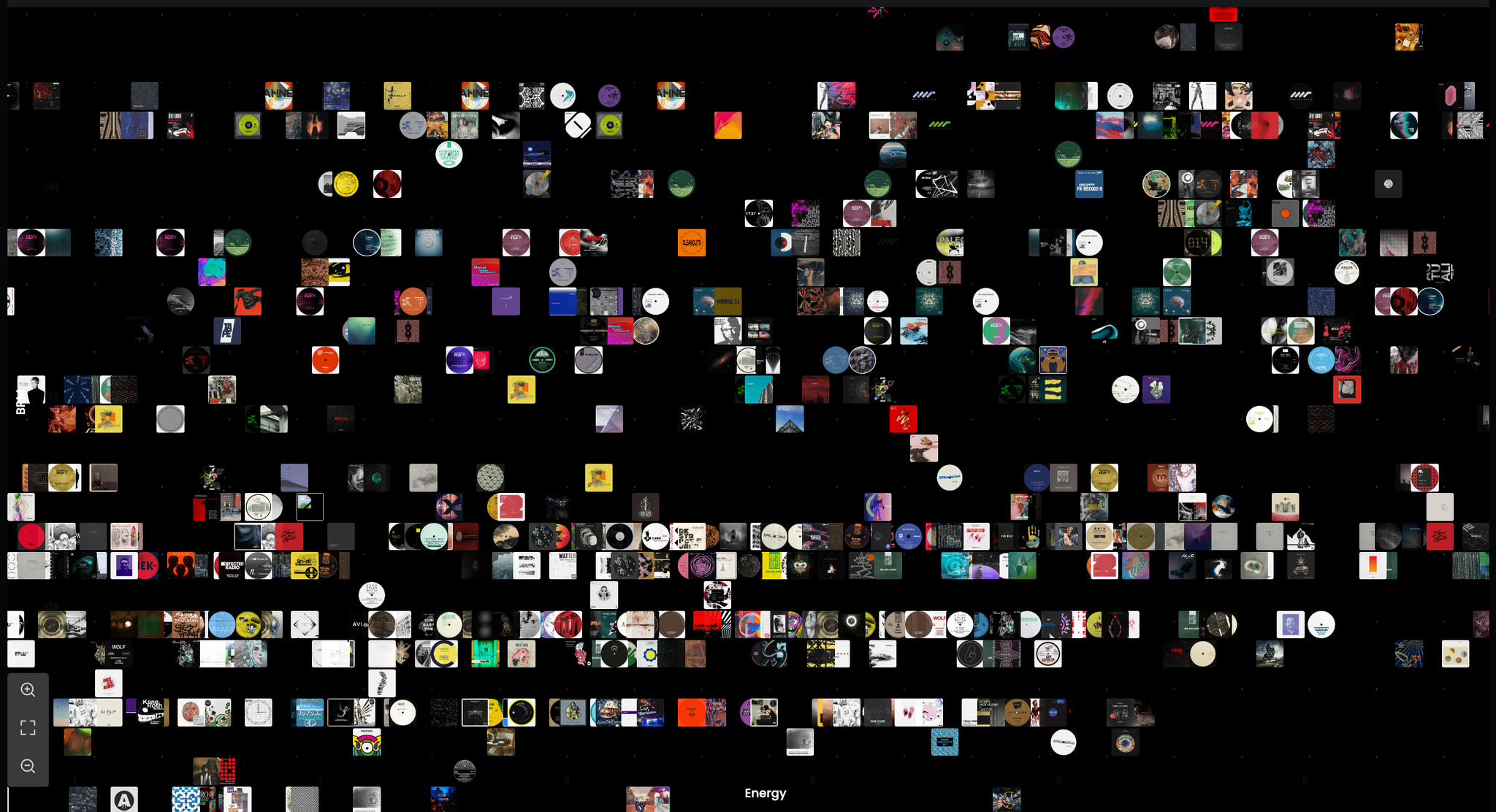
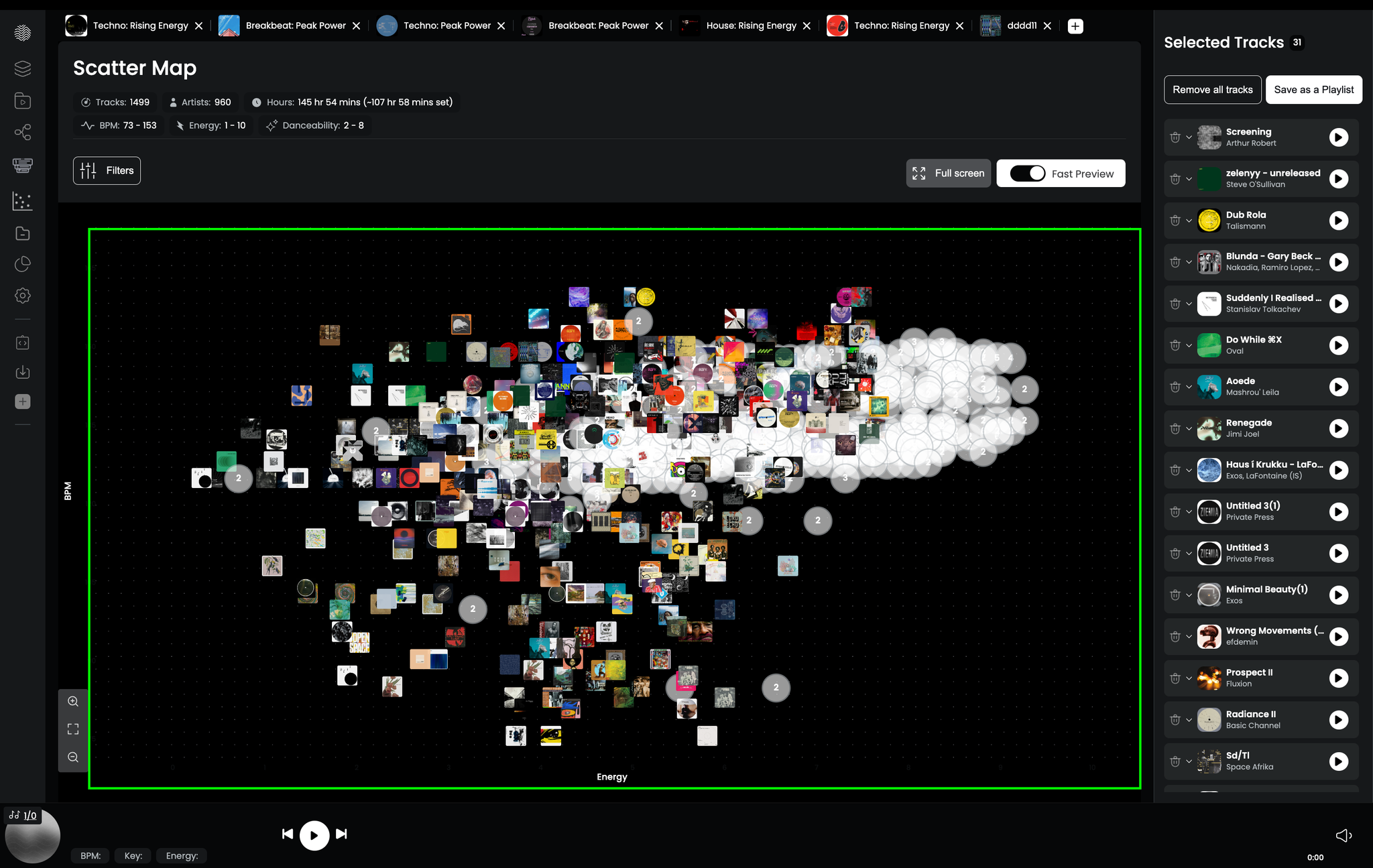
Scatter Map is a visual interface that plots your entire music library on an interactive 2D graph. Every point is a track, positioned by its musical attributes - energy, mood, BPM, and similarity. Tracks that sound alike cluster together; tracks at opposite ends of the spectrum sit far apart.
Instead of scrolling through lists, you get a bird's-eye view of your collection - letting you spot patterns, find hidden gems, and build playlists from a completely different angle.
What You Can Do
- Explore your library visually — pan and zoom across the graph to discover clusters and patterns
- Preview tracks on the spot — hover any point to see track info and play a quick preview
- Select tracks visually — click individual points or draw a circle selection to grab a group
- Filter by genre, artist, and more — narrow the view to focus on a specific part of your library
- Build playlists directly from the graph — drag selected tracks to the sidebar and save as a playlist or collection
- Tag tracks — apply tags to tracks directly from the graph view (coming soon)
Workflow 1 — Explore Your Library
Open Scatter Map from the left sidebar. Your entire library appears as a cloud of points on the graph.
- Pan and zoom to navigate — scroll to zoom in, click and drag to move around.
- Hover any point to see the track's name, artist, BPM, key, energy, and danceability — and play a quick preview.
- Notice clusters — groups of nearby tracks share similar musical qualities. These are natural zones in your library (e.g. peak-time techno, late-night deep house).
- Click any track to select it, or draw a circle around an area to select multiple at once.
Workflow 2 — Curate a Playlist
Once you've found the tracks you want, turning them into a playlist takes just a few steps.
- Use Filters to narrow the graph by genre, artist, BPM range, or other attributes.
- Select the tracks you want — by clicking individually or drawing a circle selection on the graph.
- Add them to the sidebar — either drag and drop, or click Add to Sidebar on the selection card that appears.
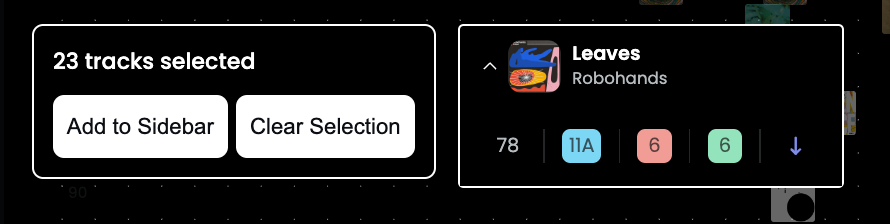
- Click Save as a Playlist in the sidebar to save your selection.
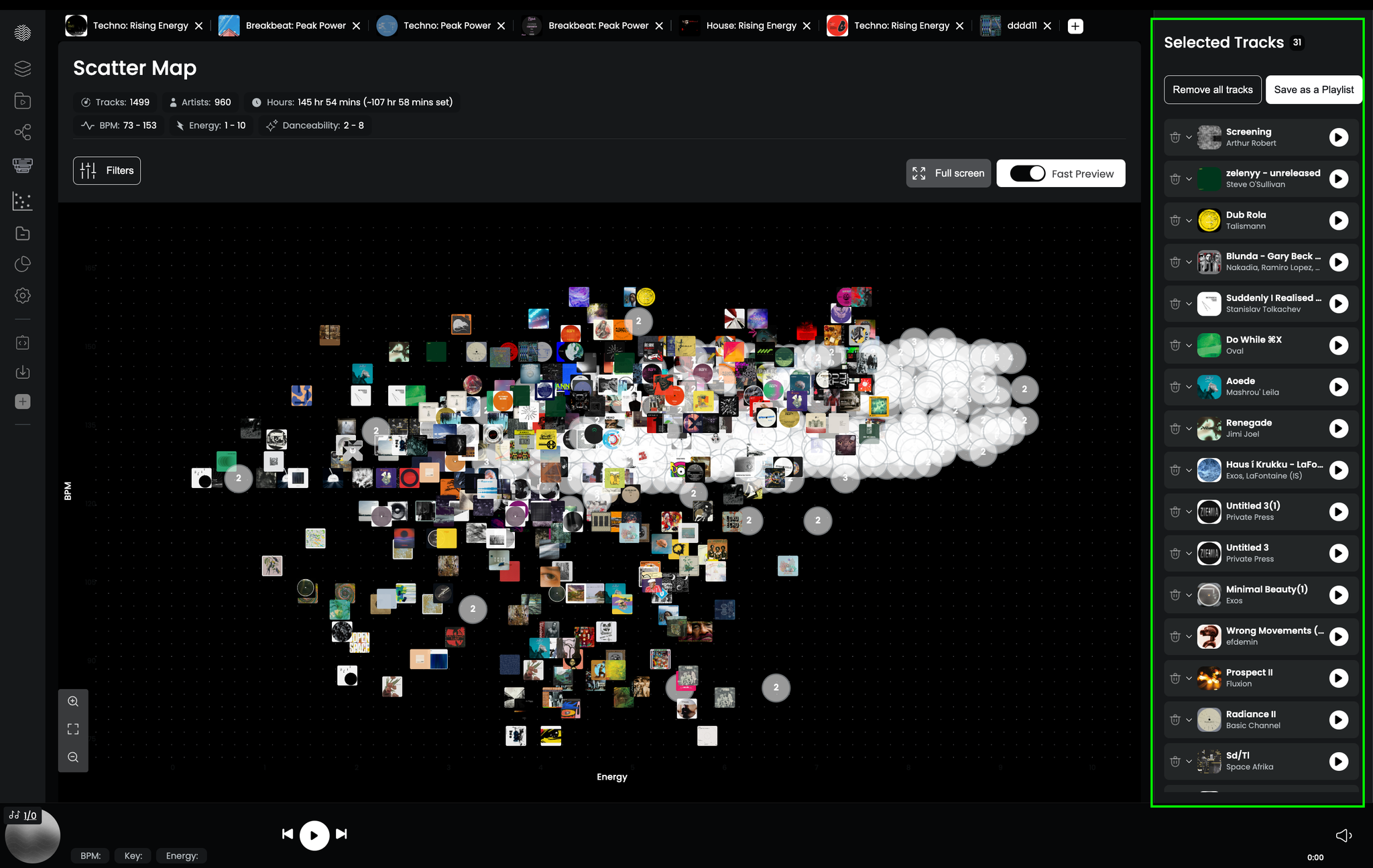
The sidebar acts as a temporary crate — you can keep adding tracks from different areas of the graph before saving.
Tip: Use Fast Preview mode (toggle in the top bar) to quickly audition tracks as you browse the graph without having to click each one.
Need help? Reach out via the in-app support button or at support@djoid.io.