User Guide
1. Setting up Rekordbox
Before connecting Rekordbox with DJOID, configure Rekordbox properly:
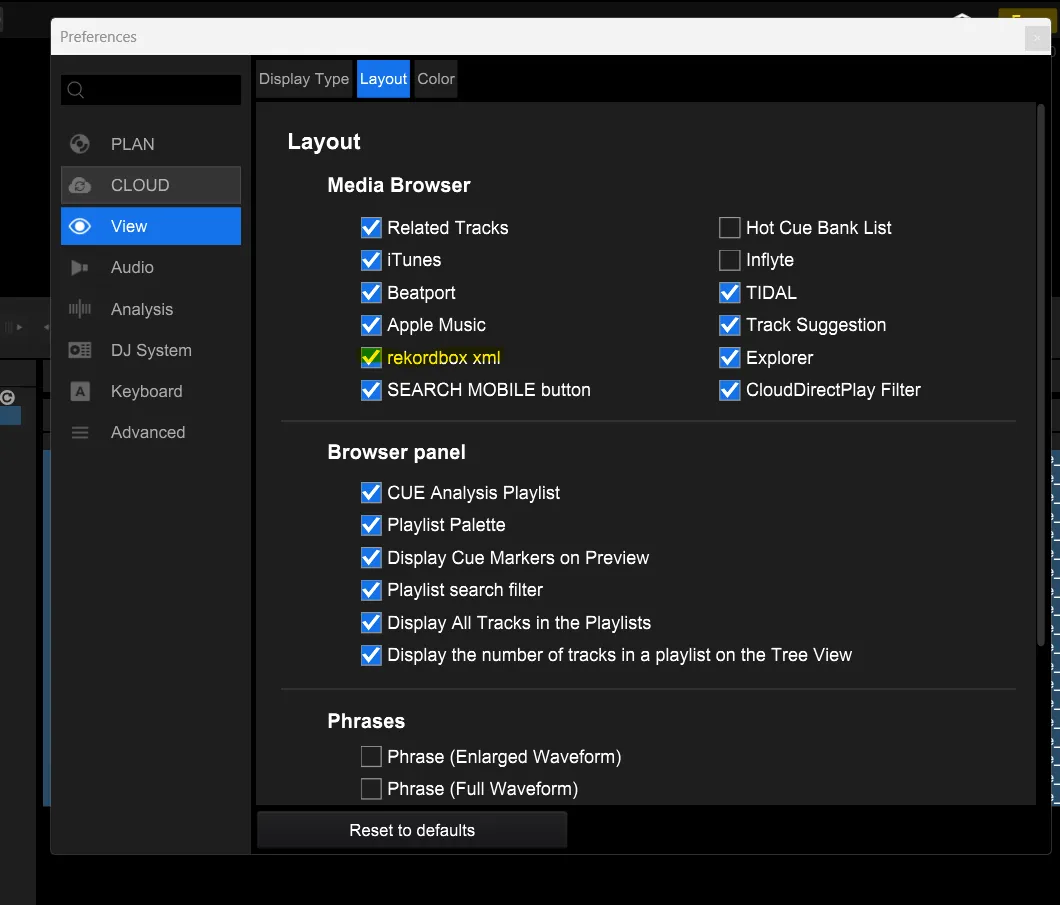
- Enable the XML tab
- Go to Preferences → View → Layout
- Check the box for rekordbox xml.
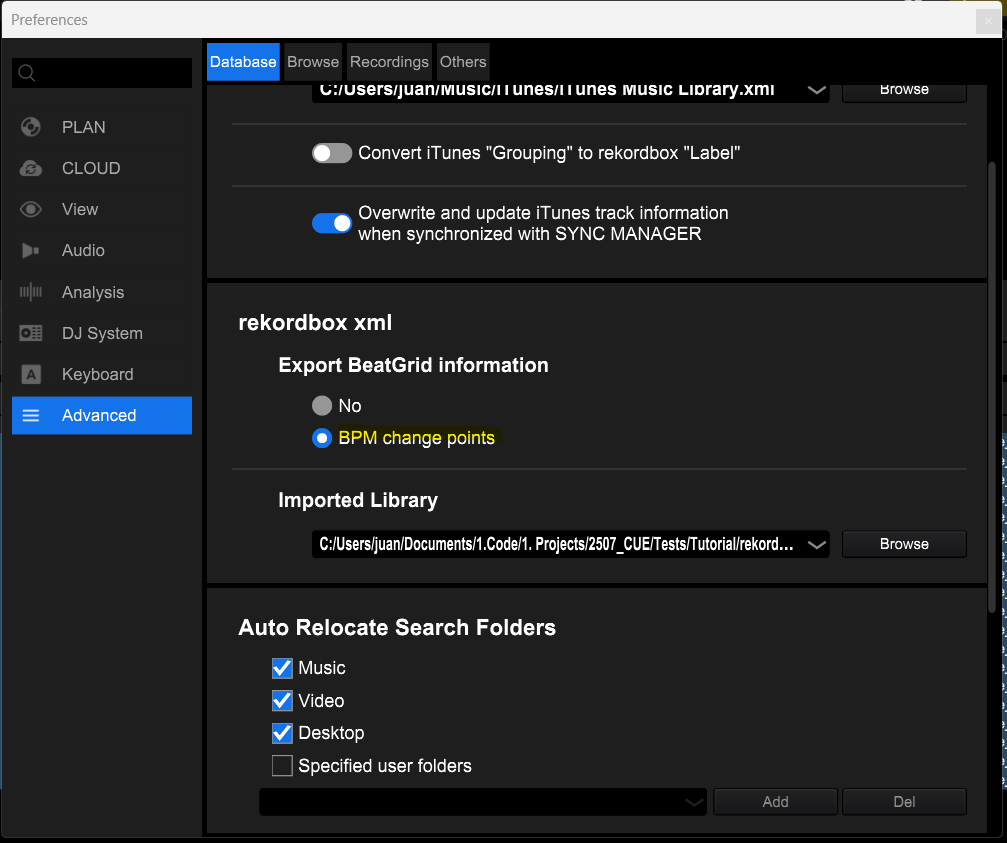
- Enable BPM change points
- In Preferences → Advanced, ensure the option BPM change points is selected.
- Import and analyze your tracks
- Add tracks to Rekordbox.
- Wait until the analysis is complete.
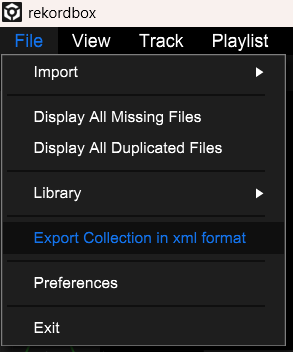
- Export your library as XML
- Go to File → Export Collection and choose XML format.
- Select a file name and location.
- Load the XML back into Rekordbox
- Go to File → Preferences → Advanced → rekordbox xml → Imported Library.
- Browse to the exported XML file.
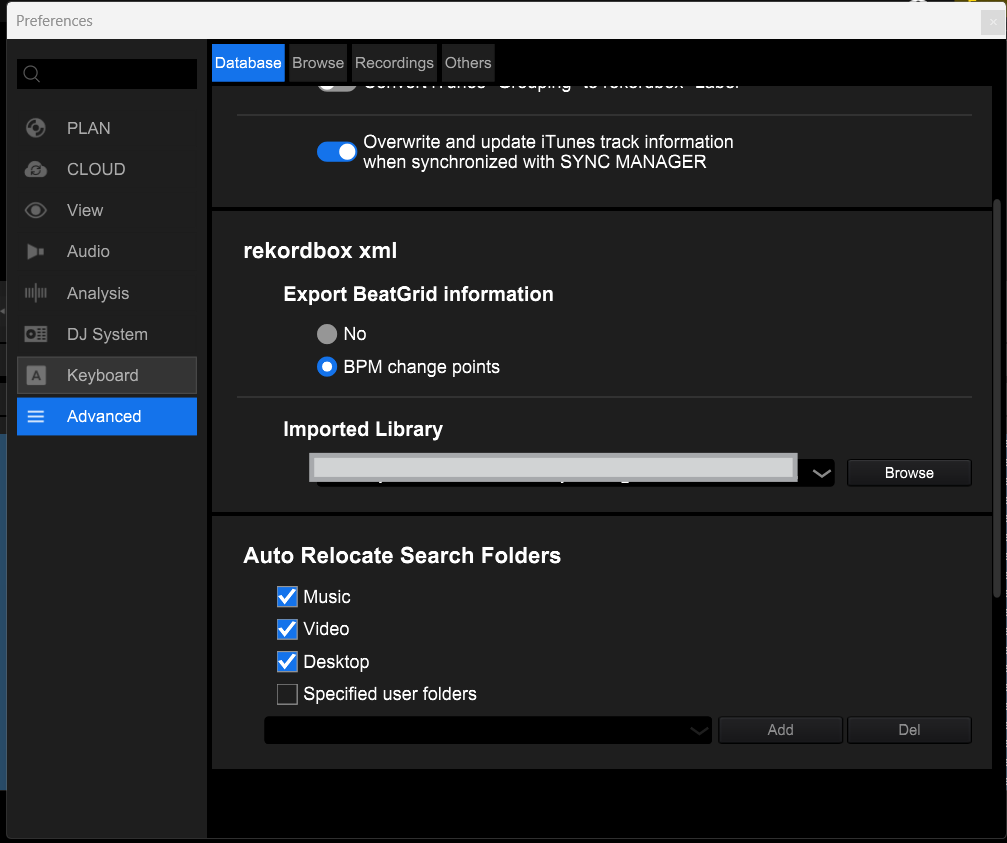
Rekordbox is now ready to sync with DJOID.
2. Importing Rekordbox Library into DJOID
- Open DJOID.
- Follow the instructions from the Import center
Once the analysis is complete:
- Navigate to Settings → Cue Points Settings → Sync to Rekordbox.
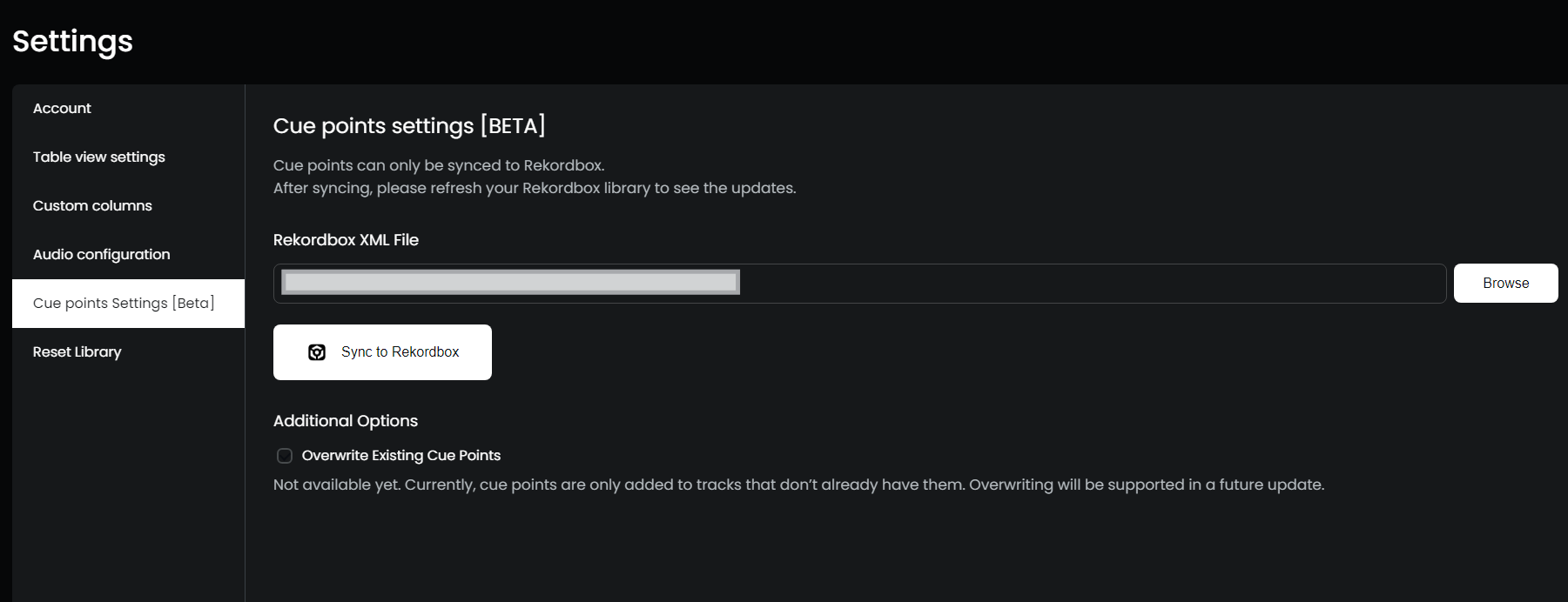
- Confirm the Rekordbox XML file path (it will be pre-filled if imported correctly).
DJOID is now synced with your Rekordbox library.
3. Syncing Cue Points Back to Rekordbox
- Return to Rekordbox.
- Go to the rekordbox xml tab.
- Click the Sync icon to update the file.
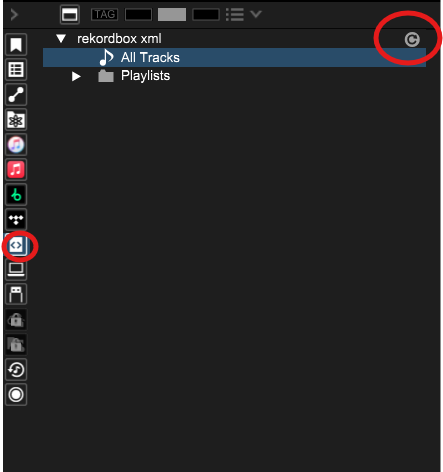
To import the cue points into your main collection: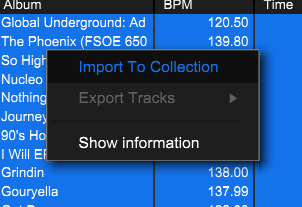
- Select the playlist or tracks you want.
- Right-click and choose Import to Collection.
Your DJOID Auto-Cue points are now synchronized with Rekordbox!