Supported DJ Platforms & Formats
Once you've curated your playlists in Djoid, you're just a step away from taking them to the decks. Djoid lets you export your playlists in the format that matches your favorite DJ platform.
Exported playlists preserve your track order and structure, making it easy to transition from preparation to performance.
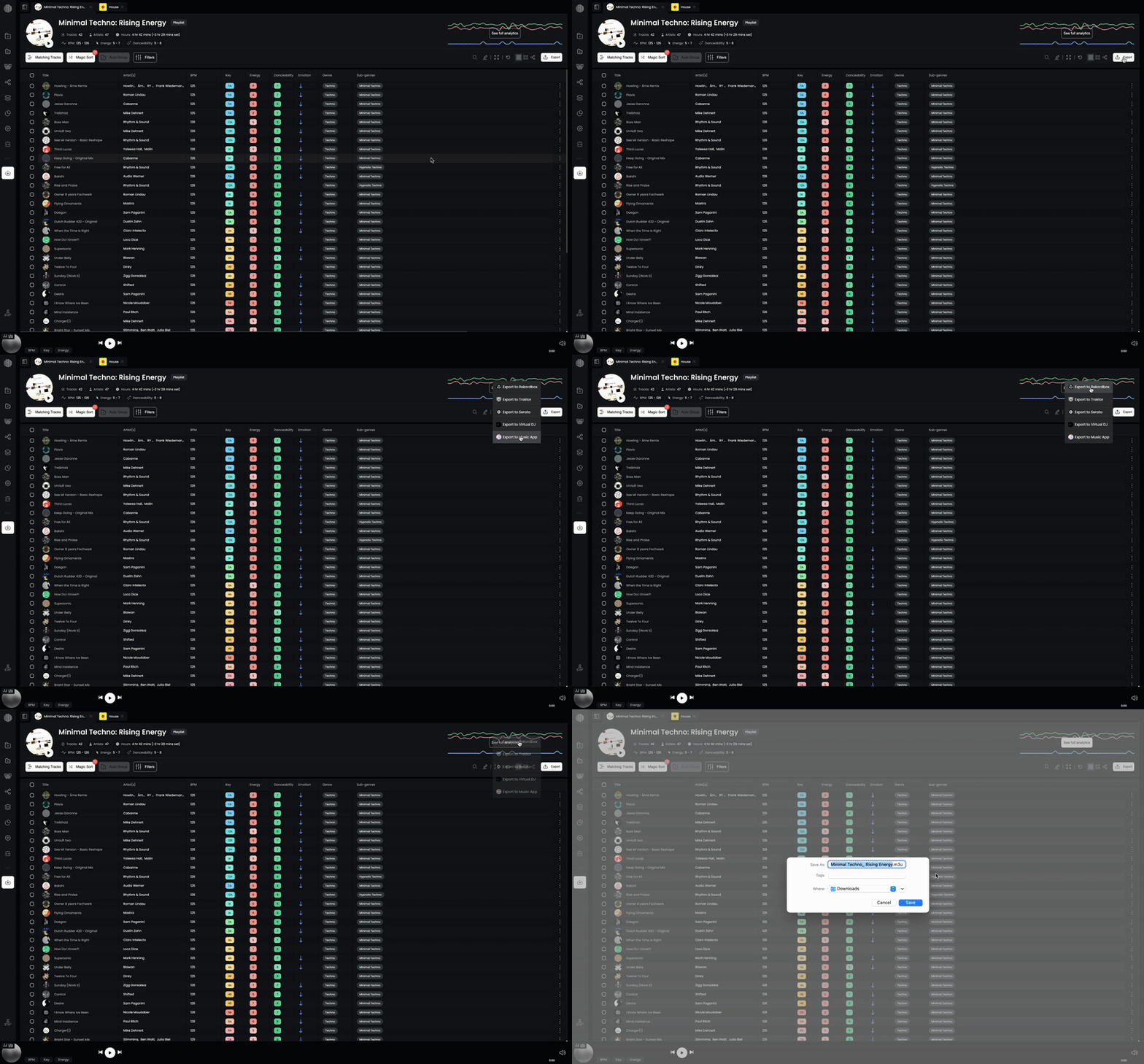
You can export any playlist, collection, or chapter from DJOID to your DJ software. Click the Export button in the top right corner and select your platform from the dropdown.
Rekordbox
DJOID exports an M3U8 file that Rekordbox can import directly.
- Click Export → Export to Rekordbox and save the file
- In Rekordbox, go to File → Import Playlist and select the exported file
Traktor
DJOID exports an M3U file for Traktor.
- Click Export → Export to Traktor and save the file
- In Traktor, import the M3U file through the playlist panel
Virtual DJ
DJOID exports an M3U file for Virtual DJ.
- Click Export → Export to Virtual DJ and save the file
- In Virtual DJ, load the playlist from the saved file location
Apple Music
DJOID exports an M3U file that Apple Music can open.
- Click Export → Export to Apple Music and save the file
- In Apple Music, go to File → Import and select the exported file
Serato
Serato DJ Pro v3 removed support for M3U drag-and-drop import. Instead, DJOID writes playlists directly to your Serato library folder — no file to import manually.
First-time setup: before your first export, go to Settings → Integrations and confirm your Serato library path. The default is
/Users/[your name]/Music/_Serato_. If your library is elsewhere, click Browse to select the correct folder. 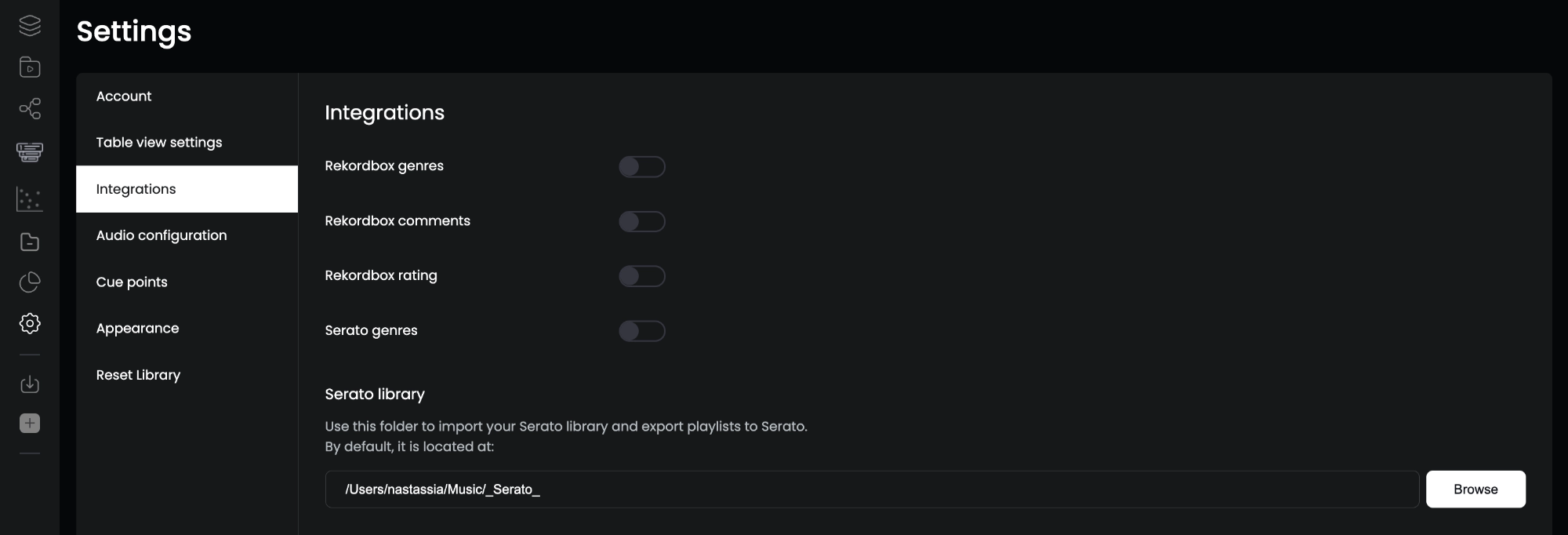
- Click Export → Export to Serato
- Open Serato DJ — your playlist will appear in the crates panel
Note: Make sure Serato is closed before exporting. Open it after the export to ensure the crates load correctly.
🔜 Coming Soon:
- Engine DJ / Denon